Print Map Studio
City map posters

A city map poster you can read from across the room.

Frame a neighbourhood or a whole city, set the page to A3 or any size in millimetres, and decide how many streets and names make it onto the paper. It runs in your browser, free and with no account.

  • A2 to A6, US Letter or custom mm
  • 12 map styles
  • Local names plus 6 languages
  • 300 DPI PNG and PDF
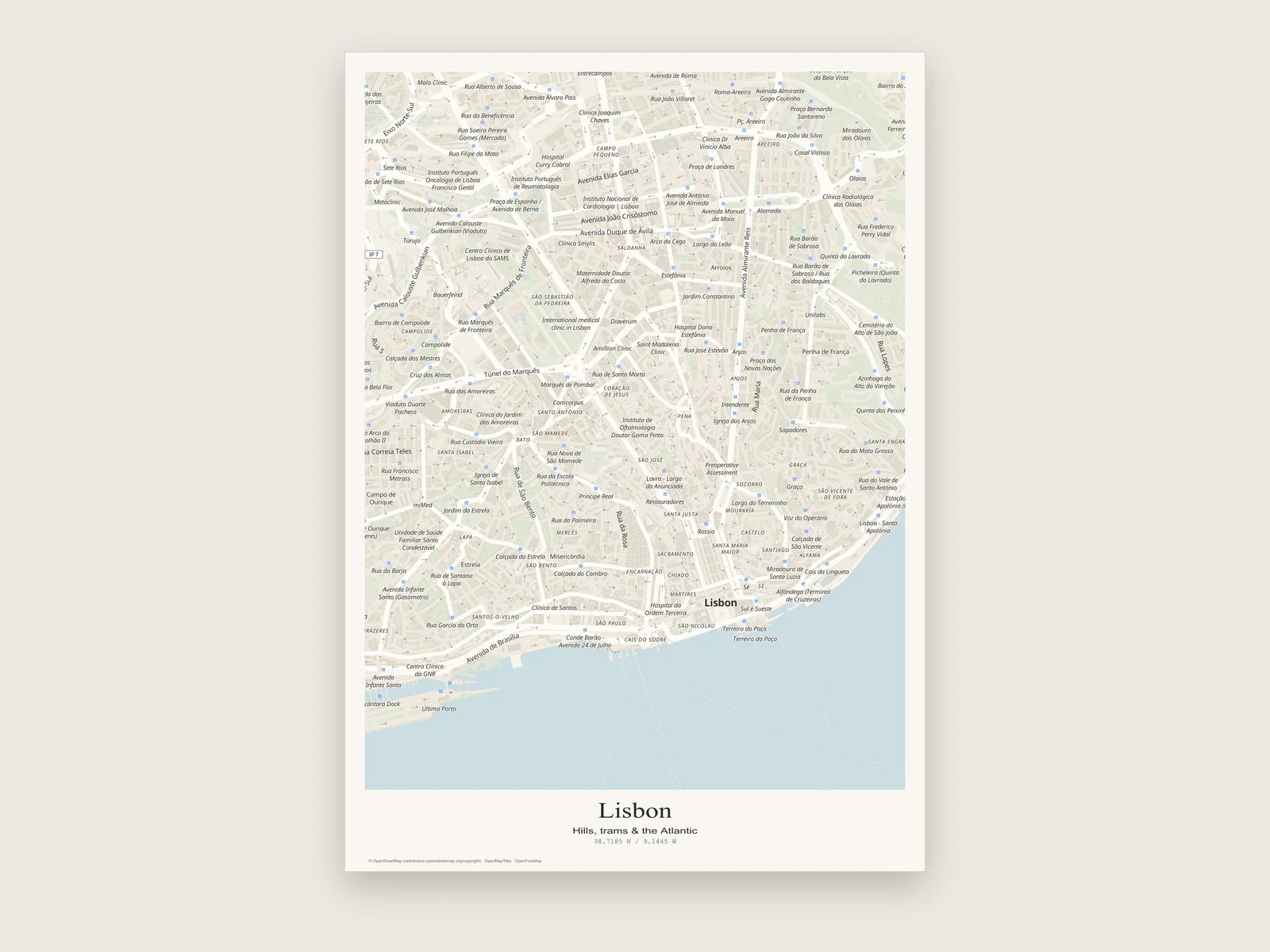
A3 Lisbon city map poster with the title block under the map

How much city fits on an A3 sheet

The first decision on a city poster is how wide a stretch of ground to show. Everything else follows from it. On an A3 portrait page with 10 mm margins the map is 277 mm wide, so the distance you frame sets the scale of the print.

A city block is a handy yardstick. Once a typical 100 m block shrinks below about 2 mm on paper, the minor streets merge into a fine grey texture and the main roads, rivers and parks start carrying the picture.

Map width 277 mm (A3 portrait, 10 mm margins). In landscape the map is 400 mm wide, so the same scale shows about 44% more ground from side to side.
Ground across the mapScale100 m block on paperWorks well for
3 kmabout 1:11,0009 mmOne neighbourhood or an old town, with room for street names
6 kmabout 1:22,0004.6 mmA compact city centre with its river or harbour
12 kmabout 1:43,0002.3 mmParis inside the Périphérique, where districts and boulevards carry the poster
25 kmabout 1:90,0001.1 mmA whole mid-sized city and the edge where it meets the country
60 kmabout 1:217,0000.5 mmLondon inside the M25, where motorways and the Thames do the work
  • To print the scale on the poster itself, turn on the scale bar in Layout › Map elements and choose metric or imperial units.
A Lisbon poster, start to finish

Here is the whole process for one city, using the settings we would pick for an A3 print. Swap in your own town as you go.

  1. Start from the Lisbon template

    Open the editor, choose New from template in the project menu and pick Lisbon, one of the four starter cities. It sets up the City edition layout: cream paper, a serif title, the subtitle "Hills, trams & the Atlantic" and the Paper map style.

  2. Set the page

    In Layout › Page, choose A3 and portrait. Templates open on an A4 landscape page, so change it before you frame the map.

  3. Frame the ground

    Drag and zoom until the Tagus runs along the bottom of the frame and Belém sits just inside the left edge. That is roughly 8 km across, close to the 6 km row in the table above.

  4. Thin out the labels

    In Map › Labels & details, raise the text scale to about 120% so district names hold up from across a room, and untick transit if the rail lines feel busy.

  5. Write the title

    Edit the title and subtitle in Layout › Text. The coordinates line underneath fills itself in from the centre of the map, so it updates as you move.

  6. Lock and export

    Lock the map area in Map › View so a stray scroll leaves your framing alone. Then open Export and download a 300 DPI PNG (3508 × 4961 px at A3) or a PDF at the exact page size.

Fewer names, bigger names

A map on a screen is made for zooming. A poster is read from a metre or two away, so each label has to earn its place. Small grey street names at screen size turn into specks on paper.

Map › Labels & details has the controls. Text scale runs from 50% to 200% and resizes every basemap label at once. Seven checkboxes show or hide whole categories: labels, roads, buildings, water, parks, land detail and transit. In the colour customiser, the Detail slider runs from Quiet to Rich and fades or strengthens parks, buildings, minor roads, boundaries and transit while keeping them on the map.

For a line-art poster, hide labels and let the title name the city. For a map people will stand and study, keep labels on, raise the text scale and frame less ground.

Labels can use local names or English, German, French, Italian, Spanish or Chinese. A Tokyo poster for a London flat probably wants English. A gift for someone who grew up in Tokyo probably wants the local names.

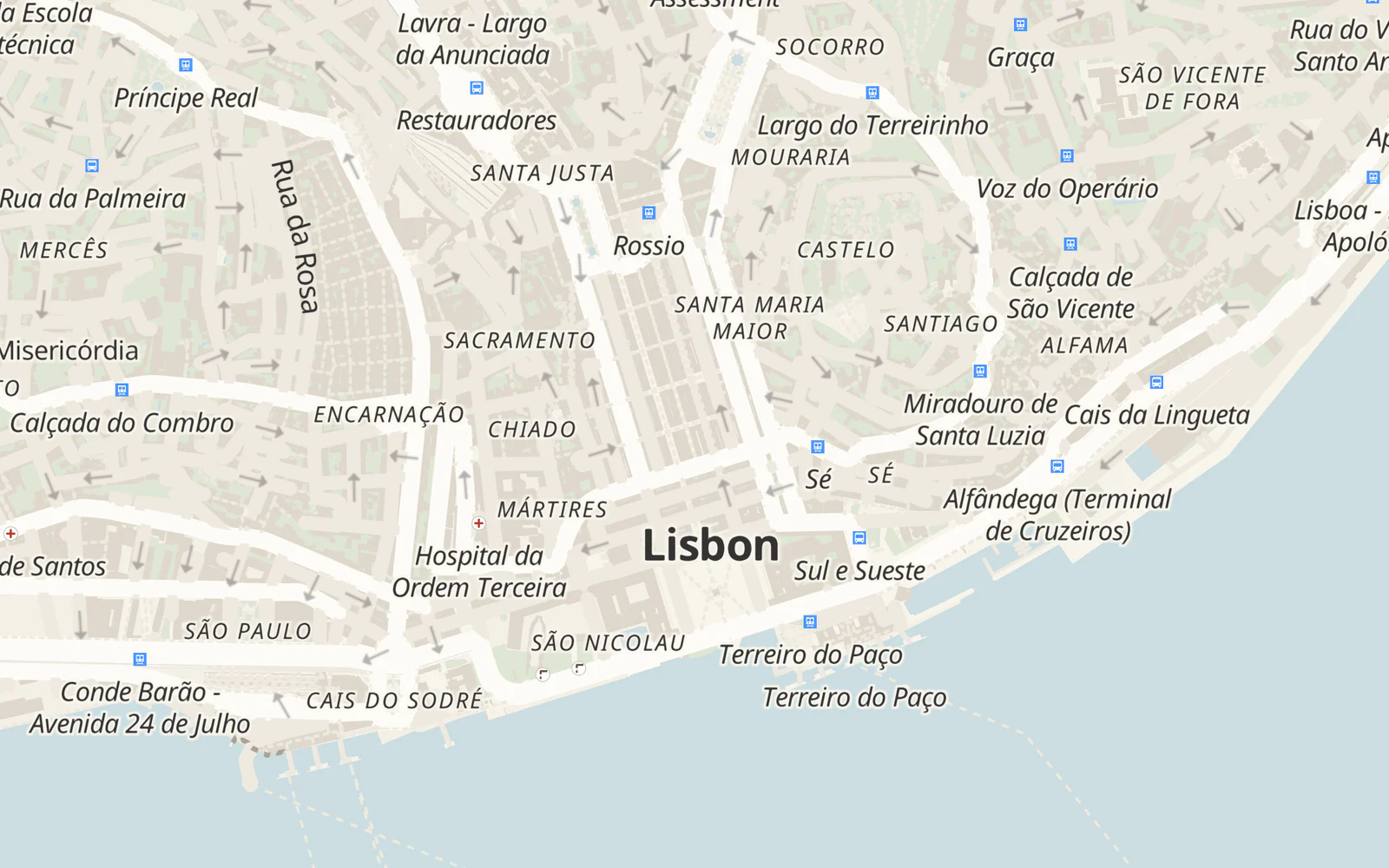
Close-up of the Lisbon poster around Baixa and Alfama, with street names readable at print size
Label density at print sizeText scale and category toggles decide how much type reaches the paper.

Pick the style for the wall

There are 12 map styles. Choose for the room the poster will hang in, because a dark map on a dark wall disappears and a very pale one can look washed out in strong daylight.

Paper and Porcelain
Light and quiet. Good on white or pale walls, and in rooms that already have a lot going on.
Graphite
Monochrome with crisp contrast. Pairs well with a thin black frame.
Night Ink and Blueprint
Dark grounds with light lines. Strong above a pale sofa or in a bright hallway. They put a lot of ink on paper, so ask your print shop for a stock that handles heavy coverage.
Sandstone and Terracotta
Warm clay tones that sit well with wood, linen and warm lamps.
Sea Glass, Coastal and Alpine
Greens and blues for cities where the water and parks are the story, such as harbour towns and lake cities.
Rosewater
Blush neutrals with plum-grey labels.
Signal
A clean neutral map with one coral accent on transit lines.

Make the palette yours

Customize colors opens the palette for whichever style you picked. Shift the tone warmer or cooler, set contrast from Soft to Crisp, and give any of the 11 map roles its own colour: canvas, land, water, parks, buildings, major and minor roads, boundaries, transit, labels and the halo behind labels.

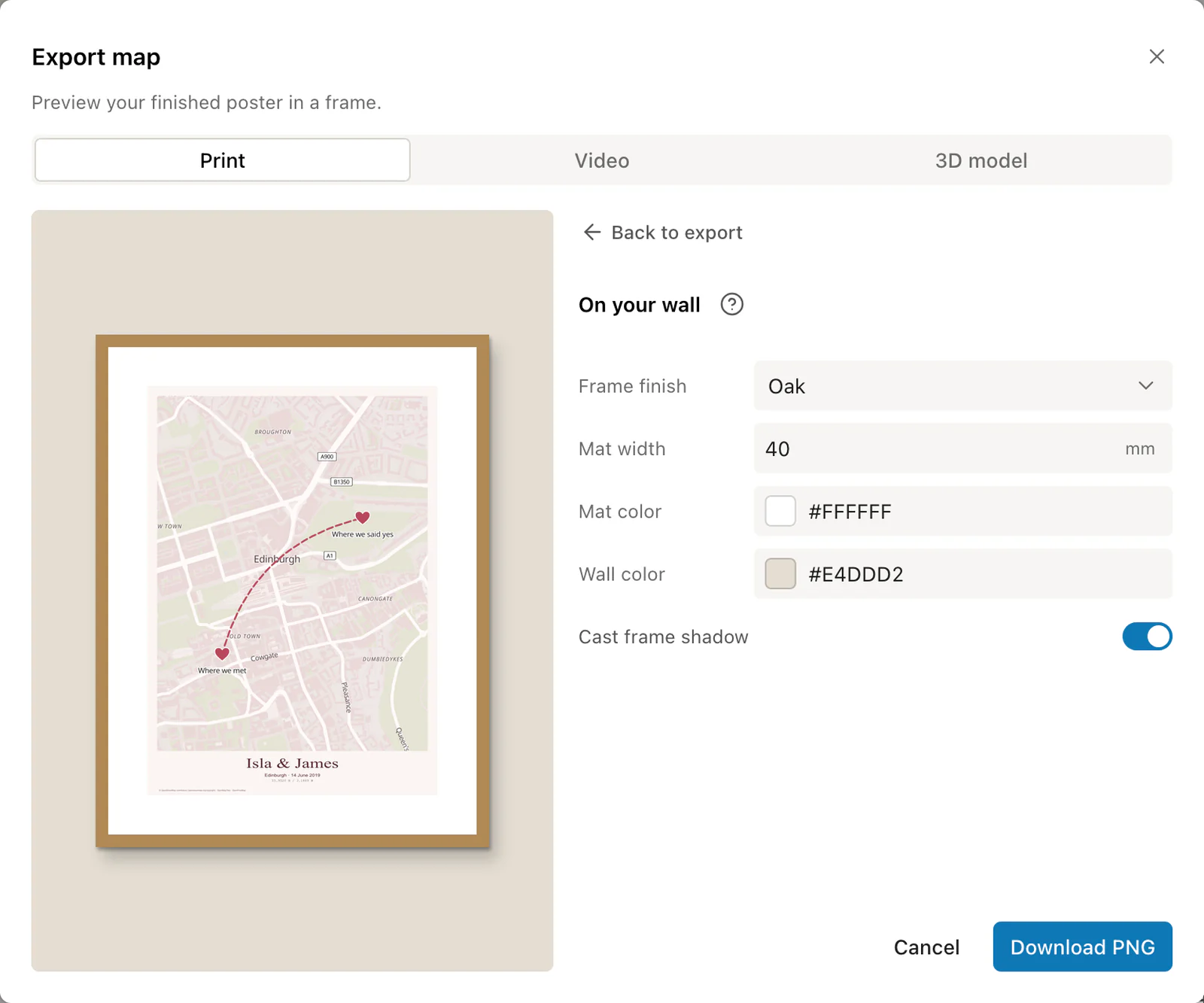
Then open the wall preview in the Export dialog, the same place you choose between PNG, PDF, layered SVG and layered PSD. The preview shows the poster in a black, white, oak or walnut frame with an optional mat, on a wall colour you choose, before you spend anything on printing.

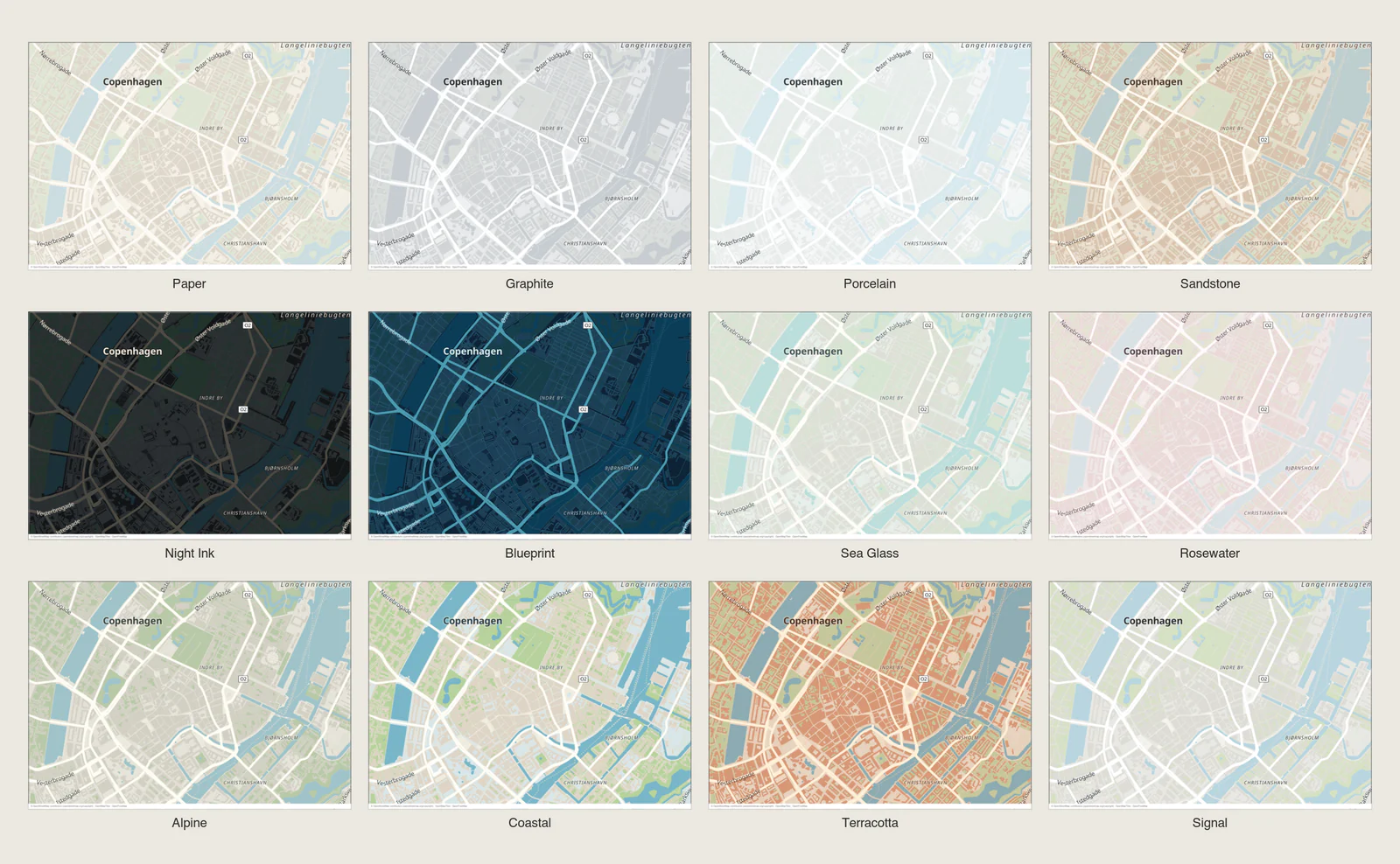
The same Copenhagen map in all twelve styles, from Paper to Signal
Twelve starting pointsEach style is a full palette you can adjust role by role.
Wall preview of the Edinburgh poster in an oak frame with a white mat
Wall previewFrame finish, mat width and wall colour are for checking the look and stay out of the export.

Ready to start?

Frame your city on an A3 page.

Make a city poster

Common questions.

Places, sizes, labels and getting it printed.

Which cities can I make a poster of?

Any town or city in the world. The base map is drawn from OpenStreetMap data through OpenMapTiles and OpenFreeMap, so small towns and villages are covered as well as capitals.

What size should I print a city map poster?

A3 (297 × 420 mm) suits a desk wall or a hallway. A2 (420 × 594 mm) is a good size above a sofa or bed. For a frame you already own, choose Custom and enter its size in millimetres.

Is the PNG sharp enough for a large print?

PNG export renders at 300 DPI for the page size you chose. That is 3508 × 4961 pixels at A3 and 4961 × 7016 pixels at A2. For the cleanest type and lines, send a PDF.

Can I mark my street or my flat?

Yes. Add a place with the Place tool, give it a label and pick a marker colour, shape and size. You can also upload your own PNG, JPEG or SVG marker, such as a small heart or house icon, and export it in PNG, layered SVG or layered PSD.

Can I change the language of street names?

Yes. Map › Labels & details switches labels between local names, English, German, French, Italian, Spanish and Chinese.

How do I get it printed?

Download the file and take it to any print shop or online printer. Most ask for a PDF at the exact page size. The map print size guide lists the pixel dimensions for every page size.