Print Map Studio
Map poster templates

Map poster templates that set the type, paper and colours for you.

Five layouts, each with paper colour, title type and map style chosen to work together, plus four starter cities to learn from. Start a new poster from one, or switch the poster you already have and keep your map exactly where it is.

  • 5 layout presets
  • 4 starter cities
  • Switch without losing your map
  • Free, no account
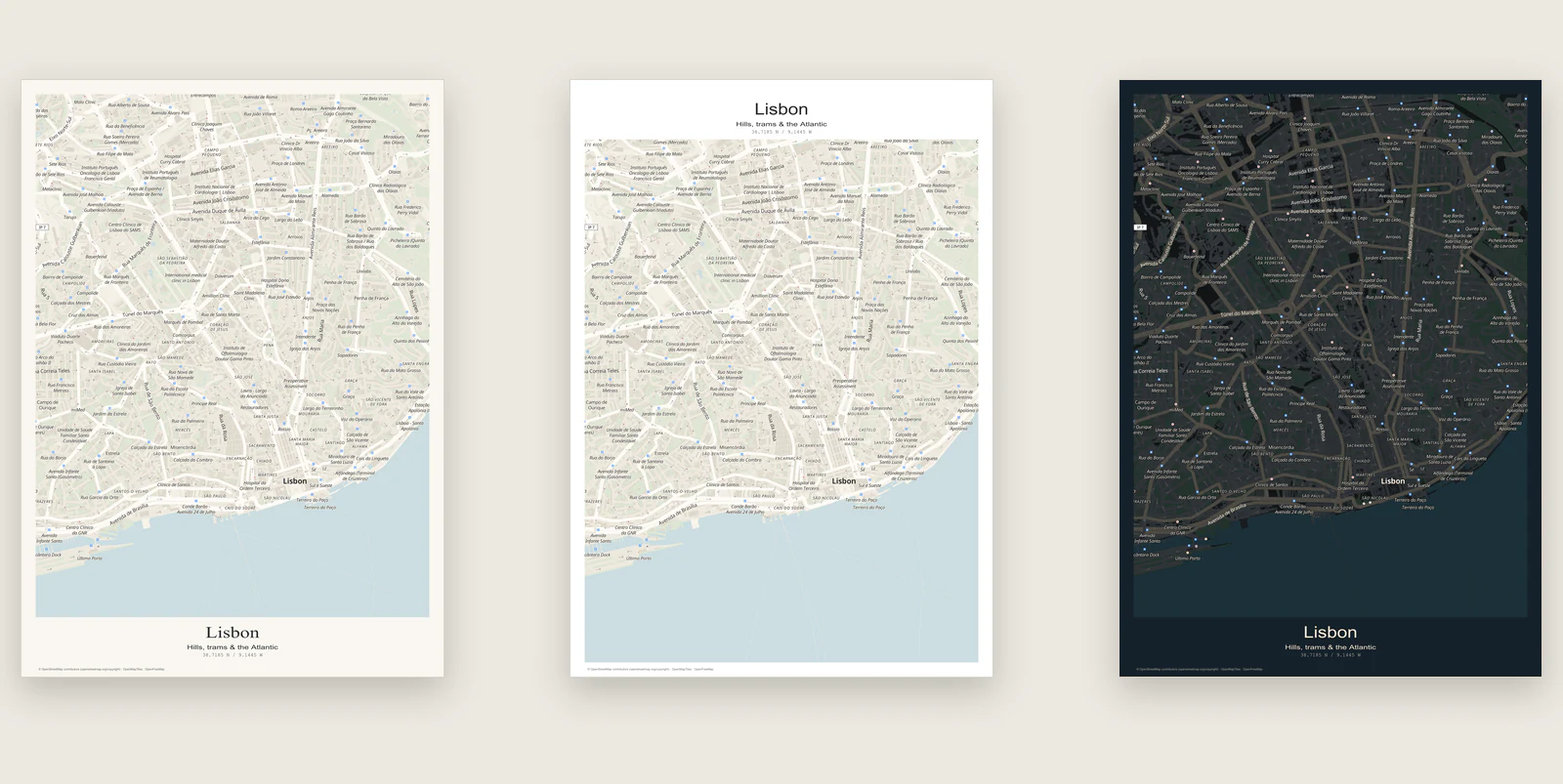
The same Lisbon map in three layouts: City edition, Quiet lines and After dark

The five layouts and what each is for

A layout preset sets the parts of a poster that have to agree with each other: paper colour, type, ink colour, title position and a map style that suits them. Picking one is faster than matching five settings by hand, and everything stays editable afterwards.

Every layout also turns on the coordinates line and uses 10 mm margins on all four sides.
LayoutLookUse it for
City editionCream paper, slate-black Classic serif title below the map, Paper styleHometown and city posters with a traditional title block
Quiet linesWhite paper, Modern sans title above the map, Paper styleMinimal rooms, lots of open space and exact coordinates
After darkDeep navy paper, Modern sans title below the map, Night Ink styleA statement piece. Dense street grids glow against the dark ground
Land & outlineCream paper, dark green-grey Classic serif title below the map, Paper styleCountry and region posters with a shaped map frame
Field notesWarm parchment, Field notes mono title above the map, Paper styleTrips, routes and photo stories with a logbook feel

Pick a design, or start with a place

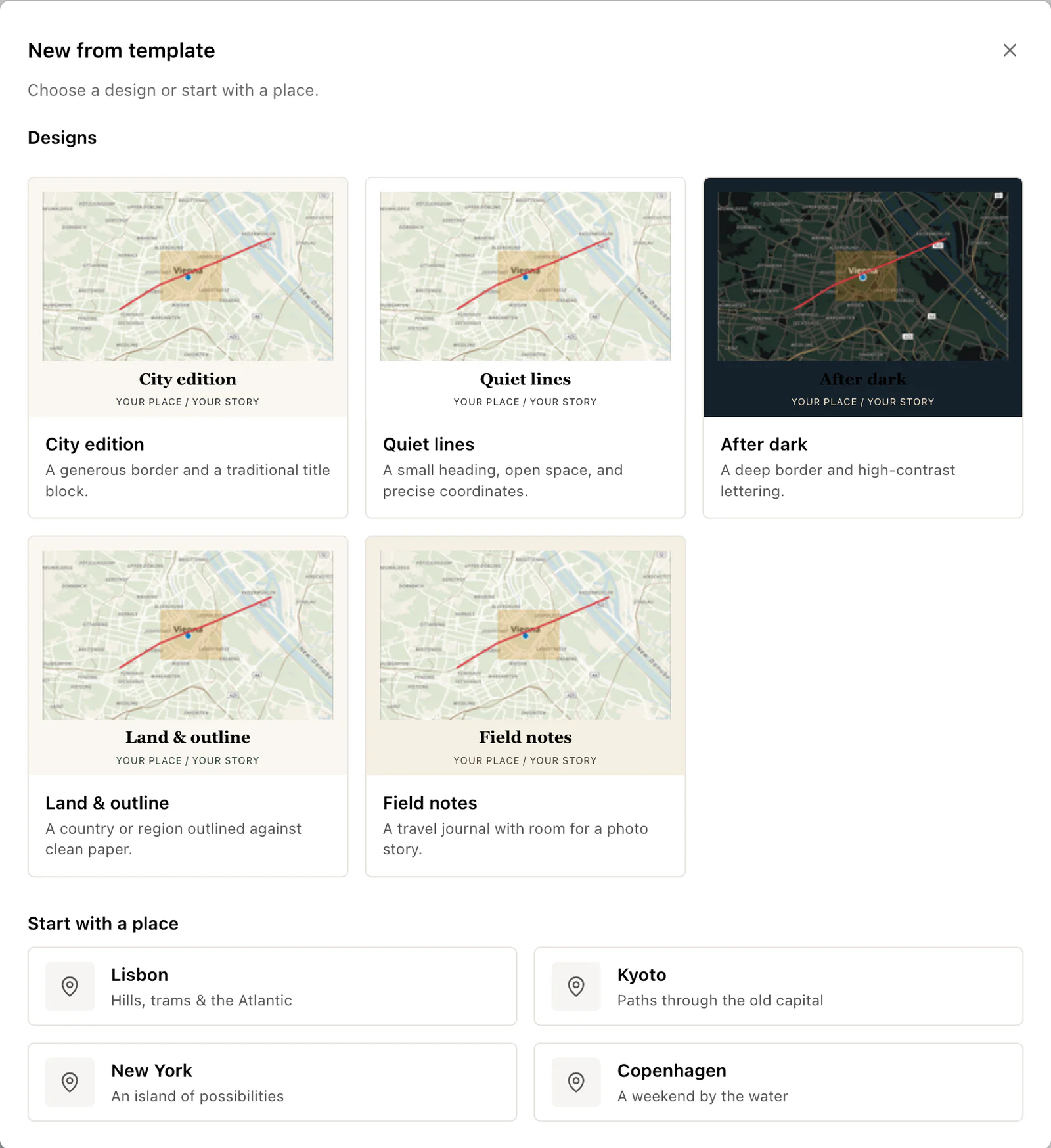
There are two ways in. New from template in the project menu starts a fresh project from a design, optionally placed in one of four starter cities. Change layout in the Layout tab restyles the project you already have.

New from template dialog with five poster designs and four starter cities
New from templateFive designs, plus four starter cities that each open with a matching layout.

The four starter cities

Each starter opens a ready-made poster you can learn from or adapt. They are good for seeing how a layout behaves on a real street pattern before you bring in your own place.

Lisbon · City edition
"Hills, trams & the Atlantic". A hilly city on a river mouth, with the serif title block underneath.
Kyoto · Quiet lines
"Paths through the old capital". The regular grid of the old city reads well with a clean sans title and a lot of white.
New York · After dark
"An island of possibilities". Midtown and the rivers on deep navy paper with the Night Ink map.
Copenhagen · Field notes
"A weekend by the water". Parchment paper and mono type, ready for photo stops and a route.

What changes when you switch layout

Switching layout in Layout › Change layout restyles the poster around your existing work. The map stays exactly where you framed it, and everything you added stays on it.

SettingAfter you switch
Map position, zoom and rotationKept
Routes, places, areas and imported dataKept
Photos and the photo stripKept
Title, subtitle and caption textKept
Compass, scale bar, grid and QR codeKept
Page size and orientationKept
Label language, text scale and palette adjustmentsKept
Paper colourFrom the layout
Title font, type sizes and ink colourFrom the layout
Map styleFrom the layout
Margins10 mm on every side
Coordinates lineSwitched on
  1. A country or region outline stays in place with the colour it was fitted with. After moving to a layout with a different paper colour, fit the outline again from Layout › Map frame so the mask matches.

When to switch, and when to stay

Early on
Try layouts while the map is still rough. Each switch resets margins and type sizes, so finish those details after you have settled on a look.
For the room
A poster for a dark hallway might suit After dark, while the same map for a bright kitchen might suit Quiet lines. The map framing carries over, so comparing takes seconds.
For the subject
For a trip with photos and a route, Field notes puts the title on top and leaves the bottom free for a photo strip. For a country shape, Land & outline is tuned for the cut-out.
Once it is close
Stay on the layout and adjust the paper colour, margins and type in Layout › Page and Layout › Text, and the map colours in Map › Style › Customize colors. Those changes are yours to keep.

Ready to start?

Pick a layout and make it yours.

Try a template

Common questions.

Starter cities, switching layouts and saving your own look.

Which layout should I use with a country or region outline?

Land & outline. It sets cream paper and a serif title in dark green-grey, which suits a cut-out shape. Choose it before fitting the outline in Layout › Map frame, because the mask takes the paper colour at the moment you fit it.

What page size does a template start on?

New projects start on an A4 landscape page. Change the size and orientation in Layout › Page; the template's margins and title block adjust to the new page.

Can I start a template somewhere other than the four starter cities?

Yes. Choose one of the five designs without a starter, then search for or pan to your own place. Or pick a starter and move the map: the layout stays the same.

Will switching layout move my map?

The map stays exactly where you framed it. The layout changes the paper, type, margins and map style around it.

Can I make my own template?

Yes. Adjust a layout until you like it, then download the project file. Open it whenever you want to start a new poster with the same look, and change the place and title.