Print Map Studio
Import your recorded tracks

Turn a GPX file into a print-ready map.

Upload a recorded route, style the track and waypoints, set the page size, and export the finished map. It all happens in your browser, with no GIS software or account to set up.

  • GPX, KML, and GeoJSON
  • Editable route layers
  • No account
  • Browser-based export
A road trip route selected on the map, with its colour, width and dashed line settings

Import a recorded track

Upload a GPX file from a hike, ride, run or road trip. Most GPS watches and route-planning apps can export one from the activity page. KML and GeoJSON work the same way, whether the data came from Google Earth, another map tool or an open data portal.

Drop up to 10 files at once. The importer checks each file, then adds its tracks, routes, waypoints and shapes to the project as separate layers. A single GPX, KML or GeoJSON file can be up to 5 MB with 1,000 features and 200,000 coordinate points, which covers a multi-day hike recorded every second.

  • GPX 1.0 and 1.1
  • KML files
  • GeoJSON files
  • File validation
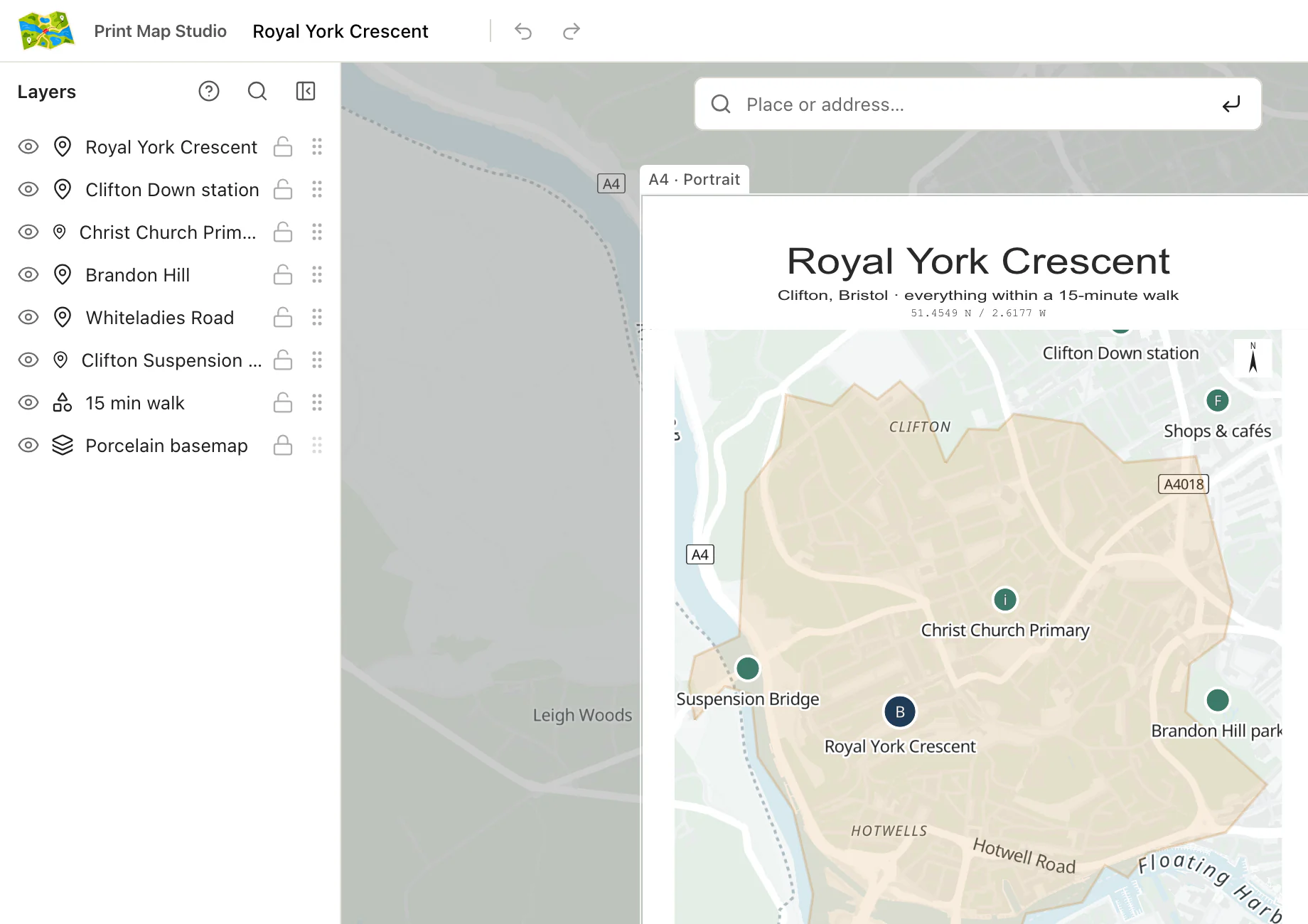
Print Map Studio layer list with places and a walking area, each on its own layer beside the map
Imported data becomes map layers.Routes, waypoints, and shapes stay separate so you can style, reorder, or hide them.

Style the route and its context

Tracks and waypoints become separate editable layers. Change the route line, style waypoint markers, reorder layers, or hide anything you do not need.

Contrast matters more than colour. A red track blends into the warm brick tones of Terracotta and stands out clearly on the cool greys of Graphite, so pick the style with the route in view. Then thin out labels, buildings or transit if the base map is still too busy.

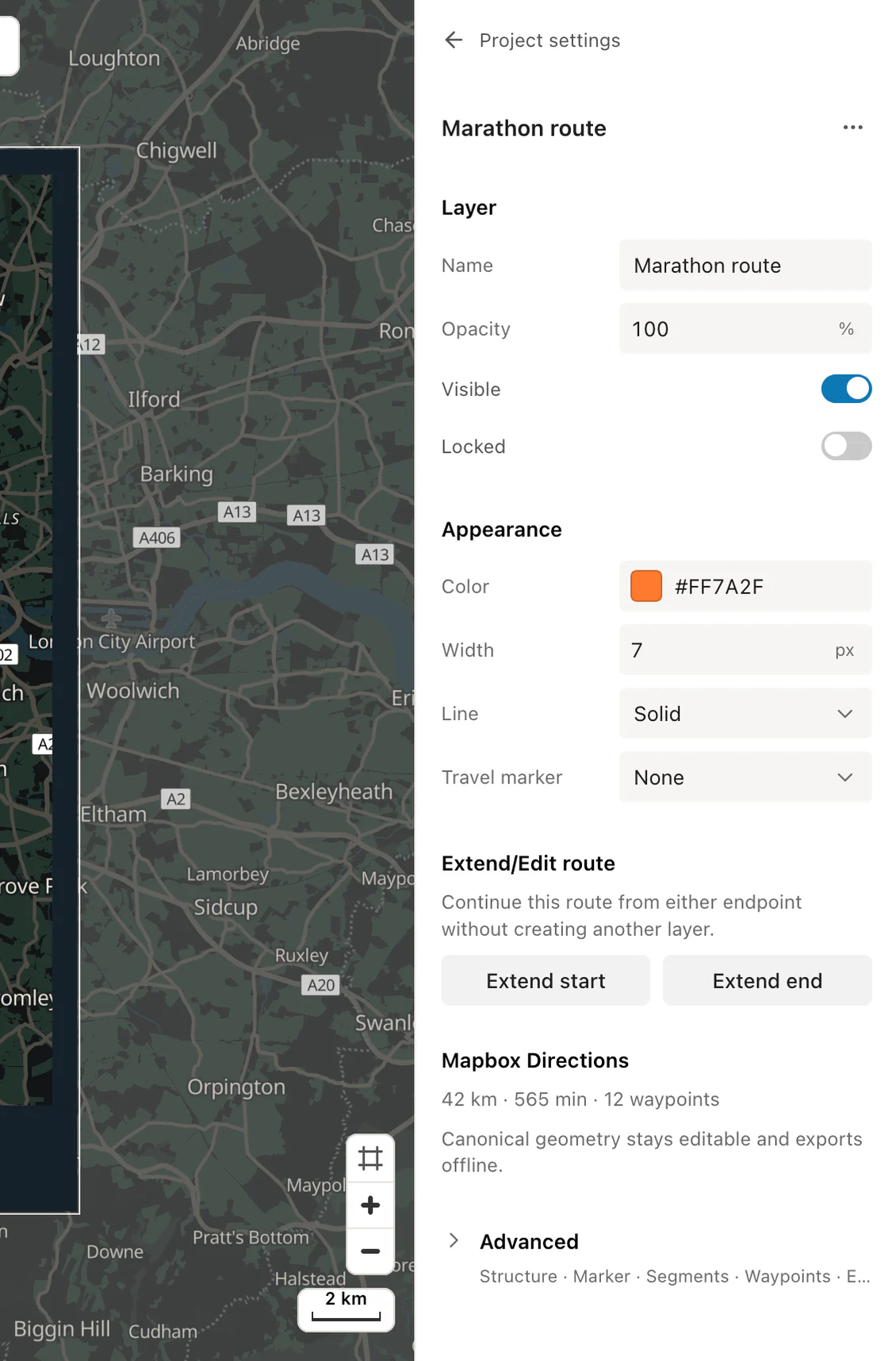
Route controls cover colour, width, line pattern, outline and opacity, plus a travel marker for air, train, car, walking, cycling or ship. Give each day of a trip its own colour, or keep one route bold over a detailed street map.

  • Editable route lines
  • Waypoint styling
  • Layer order and visibility
  • 12 map styles
Print Map Studio route line colour, width and travel marker controls
Style the route lineSet the colour, width, line pattern, travel marker, visibility and opacity.
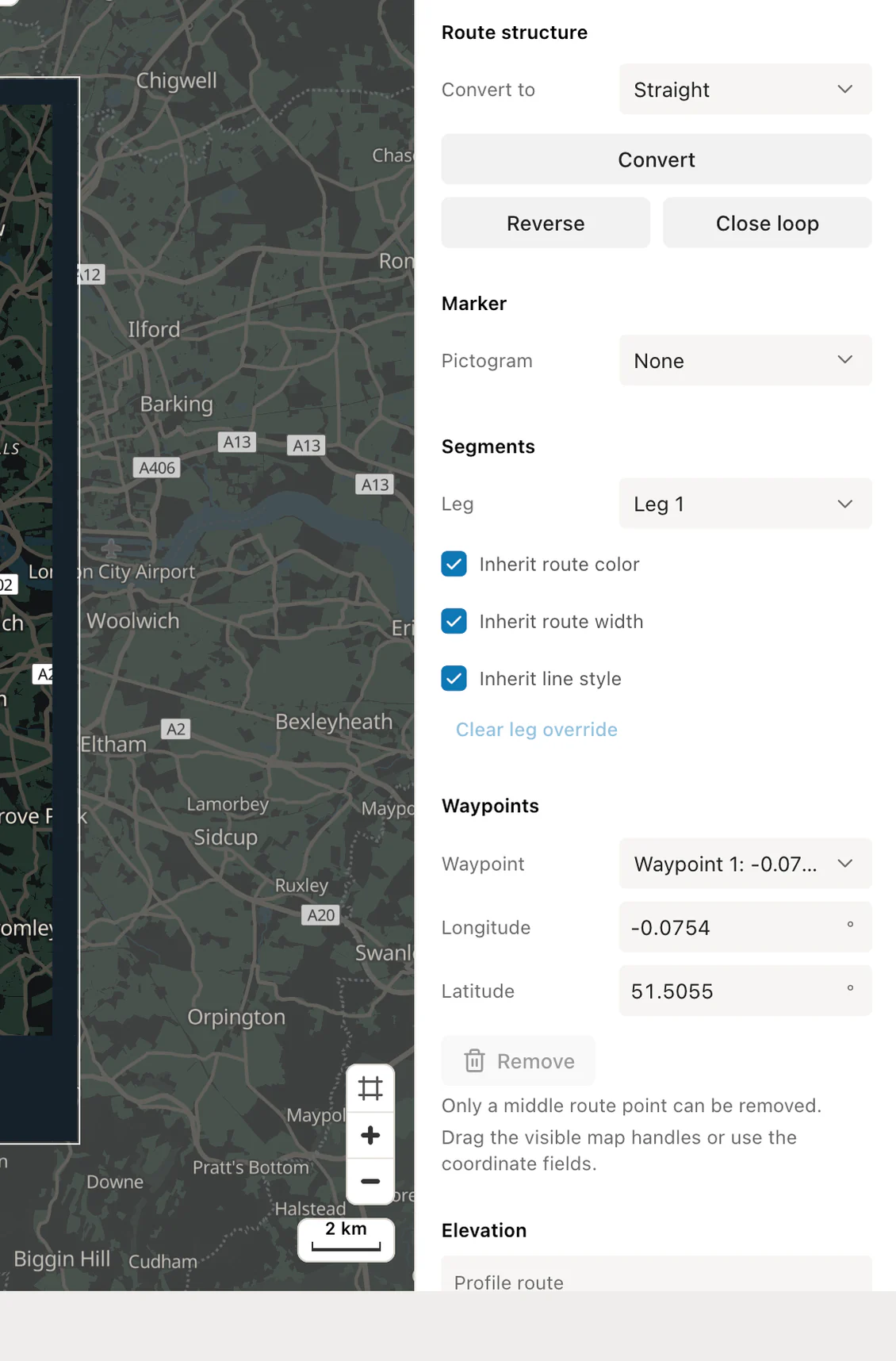
Print Map Studio advanced route structure and editing controls
Open advanced route toolsConvert, reverse, close, match, edit vertices, or generate an elevation profile.
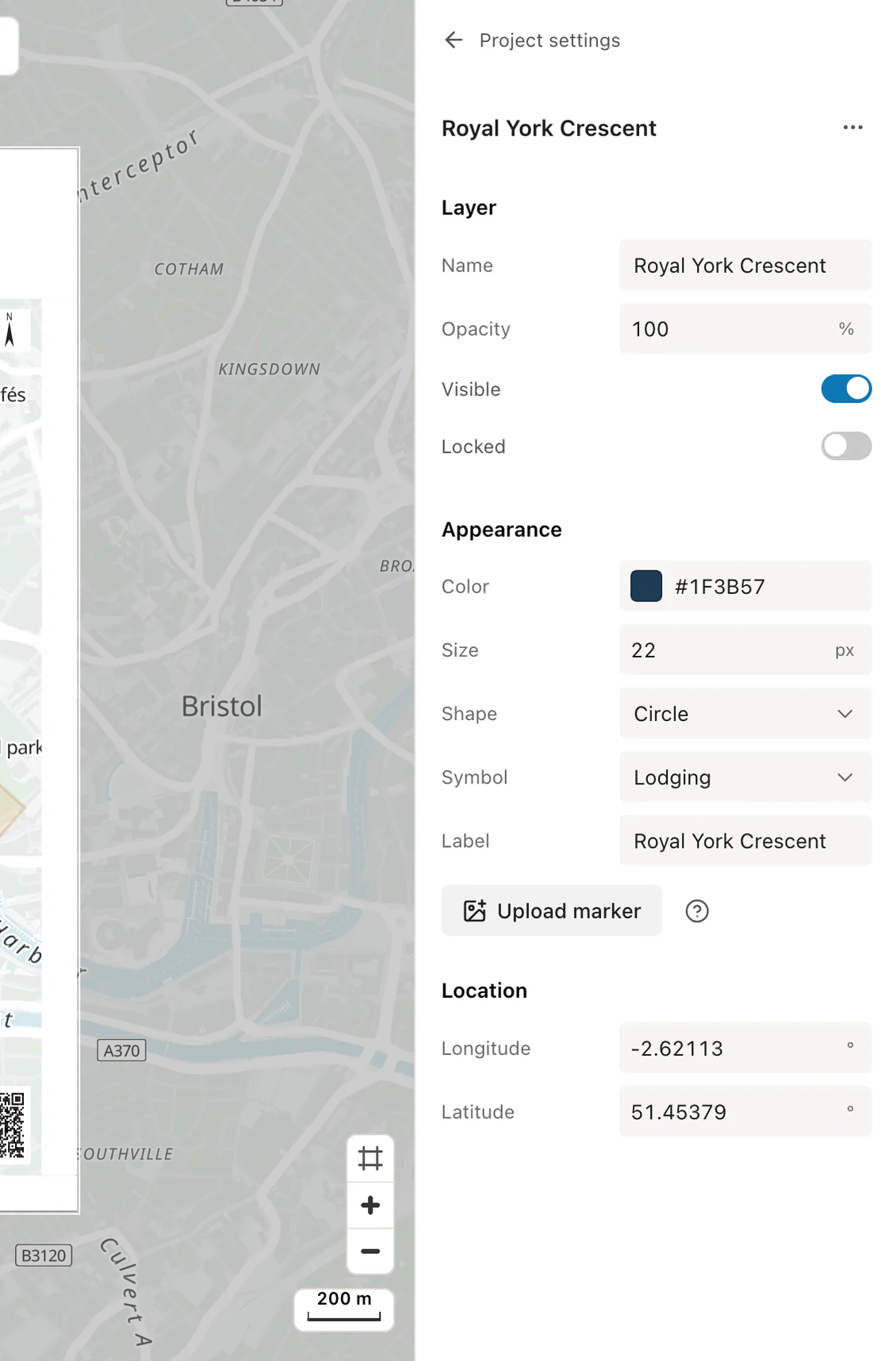
Print Map Studio waypoint colour, size, shape, symbol and label controls
Style each waypointChange the marker colour, size, shape, symbol, label or coordinates.

Snap a wobbly track to the roads

GPS recordings drift, especially between tall buildings. Road matching in the advanced route tools fits a recorded trace to the road network, so a city bike ride follows the streets instead of cutting across blocks.

The same panel can reverse a route, close a loop, convert between line types and edit individual points when one stray reading spoils the shape.

It also generates an elevation profile from Copernicus elevation data, which you download as SVG, PNG or PDF at 50 to 300 mm wide. The route map poster guide shows how to place one under a race or hiking map.

  • Road matching
  • Reverse or close
  • Edit single points
  • Convert line types

Set the print area and page size

Fit the map around the full track or focus on one section. Use a standard page preset from A2 through A6 or US Letter, choose portrait or landscape, or enter custom dimensions in millimetres. The map print size guide lists pixel sizes and paper choices for each.

The project autosaves in browser storage. Download a project file to keep a copy you can open on any computer, or send a read-only link to the people who rode it with you.

  • Fit the full route
  • Portrait or landscape
  • Custom millimetres
  • Local autosave
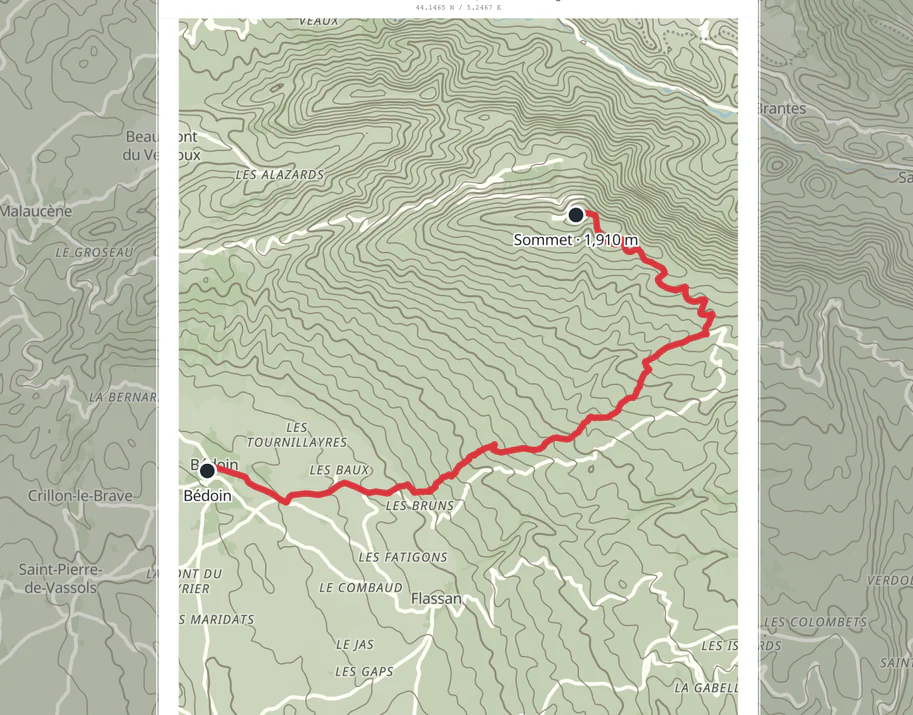
The Mont Ventoux route from Bédoin fitted inside the Print Map Studio print frame
Fit the route inside the print frame.Adjust the map until the full track and surrounding context fit the selected page.

Export the route as raster or vector content

Use PNG for a flat 300 DPI image, or PDF for an exact physical page where routes and waypoints stay sharp as vector lines. Layered SVG keeps content as named vector groups for Illustrator or Inkscape. The export formats page compares all four.

Layered PSD puts each route, waypoint and shape in its own Smart Object in Photoshop. The browser generates and downloads every format directly.

  • PNG file formatFlat image
  • PDF file formatExact page
  • SVG file formatVector groups
  • PSD file formatSmart Objects

Ready to start?

Drop in a GPX file and see your route on a page.

Import your track

Common questions.

GPS file formats, waypoints, elevation and vector export.

Which GPS file formats can I import?

GPX (versions 1.0 and 1.1), KML and GeoJSON. You can drop up to 10 files at once.

How large can a GPX or KML file be?

Each file can be up to 5 MB, with up to 1,000 features and 200,000 coordinates.

What happens to waypoints?

Waypoints are imported as place content that can be styled and managed separately from route layers.

Can I change the map after importing?

Yes. Imported routes, places, and shapes become editable layers that can be styled, reordered, hidden, duplicated, or deleted.

Does the export keep my route as a vector?

Yes. PDF, layered SVG and layered PSD keep routes and waypoints as vector content, so lines stay sharp at any print size.

Can I add an elevation profile?

Yes. Generate one from the advanced route tools and download it as SVG, PNG or PDF. The route map poster guide covers sizing and placement.