Print Map Studio
Travel time maps

Make a travel time map of how far you can get in 15 minutes.

A travel time map shows everywhere you can reach from one point within a time limit, following real streets and paths. Make one for walking, cycling or driving, then print it at the exact page size.

  • Walking, cycling or driving
  • 5 to 60 minutes
  • Vector shapes in PDF
  • Free, no account
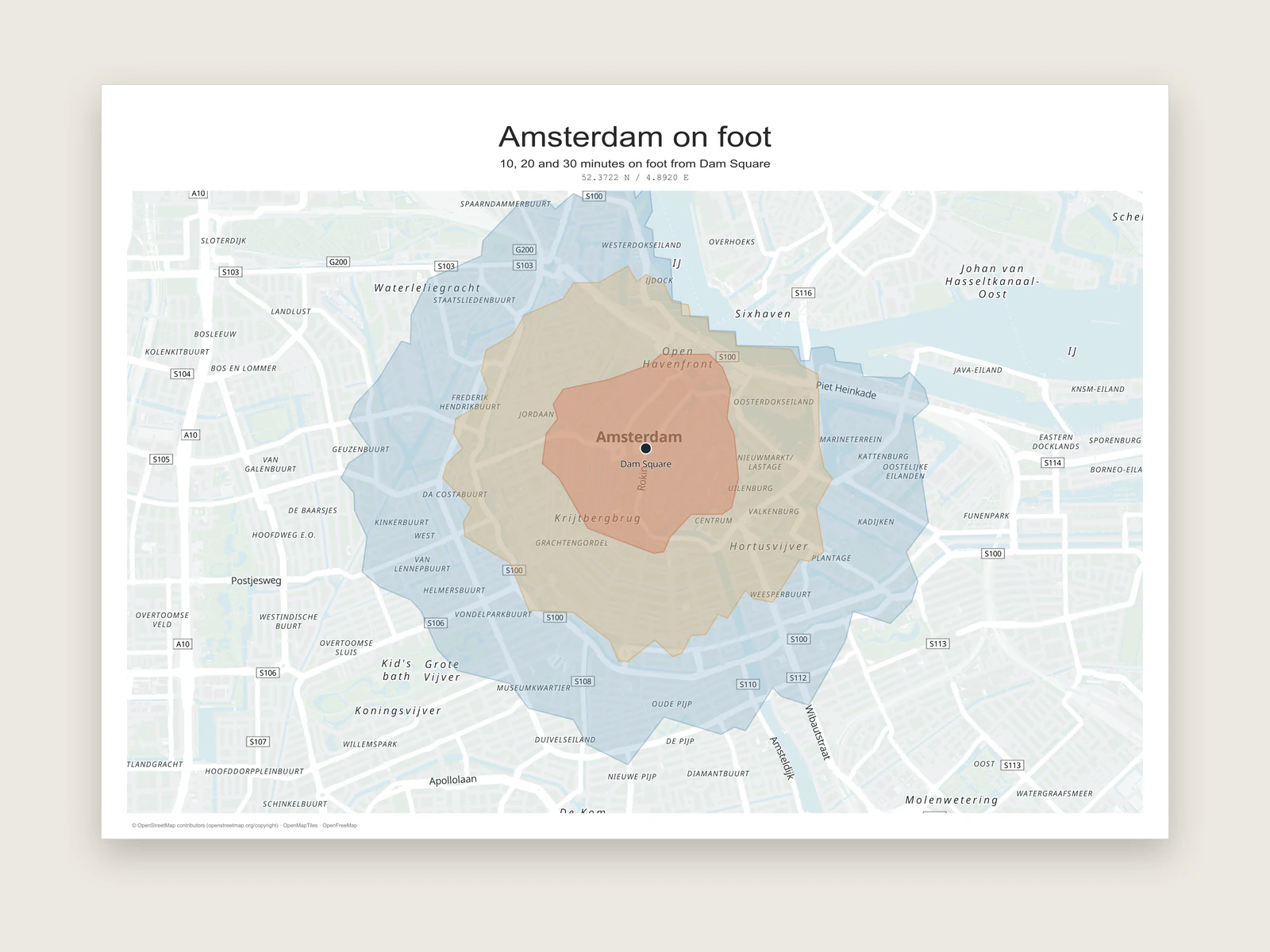
Amsterdam map with nested 10, 20 and 30 minute walking areas around Dam Square

What a travel time map shows

A circle drawn around a point assumes you can walk through buildings and swim across rivers. A travel-time area, often called an isochrone, follows the real street and path network instead. It stretches out along main roads, pinches in where a river has one bridge, and bends around railway lines until it reaches a crossing.

That makes it a more honest answer to questions like "what can I reach on foot in 15 minutes?" Two flats the same distance from an office can have very different shapes around them.

In Print Map Studio the area becomes an ordinary shape layer. You can restyle it, stack several of them, and export them as clean vector shapes in PDF, layered SVG and layered PSD.

What you can set

Starting point
Click the map or pick a search result. The coordinates show under the point so you can check it.
Travel mode
Walking, Cycling or Driving, using the matching Mapbox routing profile.
Travel time
Any whole number of minutes from 5 to 60.
Result
A new area layer named after its settings, such as "15 min walking area", drawn at 28% opacity so streets show through.
Style
Fill colour, outline colour, outline width from 0.5 to 12 px, and layer opacity.
Credit
The areas come from the Mapbox Isochrone API, and "© Mapbox" is added to the printed map credit for you.

Worked example: three walking rings around a station

Nested rings are the most readable way to show travel time on paper. Here is a 5, 10 and 15 minute walking map around Utrecht Centraal, set up for an A4 handout.

  1. Find the station with search

    Search for the station and use the result as the starting point. Every ring then starts from the same exact coordinates, which a click on the map will not quite match.

  2. Generate the smallest ring first

    Open the Area tool, choose Travel time, set Walking and 5 minutes, and generate the area. New areas are added beneath the ones already on the map, so starting small leaves the smallest ring on top.

  3. Add the 10 and 15 minute rings

    Repeat with 10 and then 15 minutes from the same search result. Each larger ring settles underneath, and you can drag layers in the layer list if you want a different order.

  4. Shade from light to dark

    Use one colour family: the palest fill for 15 minutes and the strongest for 5. Give all three the same thin outline so the edges stay crisp in print.

  5. Mark the station and explain the rings

    Add a place for the station entrance. Use the poster caption for the key, for example "Walking time from the main entrance: 5, 10 and 15 minutes."

  6. Export

    PDF keeps the three rings as vector shapes at the exact A4 size. Layered SVG and PSD put each ring in its own named layer for further design work.

Where travel time maps earn their place

Travel-time areas answer practical questions, so they work best on maps that someone will use to decide something. For listings, the real estate location map guide pairs them with nearby places and a QR code.

  • Flat hunting: a 30 minute cycling area from the office, printed and marked up with viewings.
  • Shops and cafés: how far a customer walks in 10 minutes, for a leaflet or a planning meeting.
  • Property listings: the walk to the station or the nearest school, shown on the listing map.
  • Events: a 15 minute walking area around the venue, with car parks and stations marked.
  • Comparing two sites: generate an area from each and give them contrasting fills.
  • Teaching: the same 20 minutes on foot in a dense old town and a car-built suburb, side by side.
Travel time panel with Dam Square as the start, walking mode and a 15 minute duration
Travel time controlsChoose the starting point, travel mode and minutes, then generate the area.

Ready to start?

Pick a starting point and draw the first ring.

Make a travel time map

Common questions.

Isochrones, rings, travel modes and print output.

What is an isochrone map?

An isochrone is a line joining places that take the same time to reach from a starting point. A travel time map fills the area inside that line, so you see everywhere reachable within the limit.

How many rings can I add?

As many as the map needs. Each one is its own layer, so you can mix modes too, for example a 15 minute walk and a 15 minute ride from the same point.

Can I change the colours after generating an area?

Yes. Select the layer and change the fill, outline, outline width and opacity at any time.

Do travel-time areas print as vectors?

Yes. PDF, layered SVG and layered PSD keep them as vector shapes. PNG renders them at 300 DPI with the rest of the page.

Which travel mode should I choose?

Walking suits city centres, stations and shops. Cycling suits commutes and campus maps. Driving suits suburbs, rural sites and anything measured in tens of kilometres, such as a catchment area for a venue.