Print Map Studio
Map video maker

Make a short map video from your poster.

The video export records your finished poster with a slow camera move: one full orbit or a gentle sway. It saves as an MP4, sized for Reels, Shorts, feed posts or a slide deck.

  • Orbit or sway
  • 5, 10 or 15 seconds
  • Up to 1920 px
  • Free, no watermark
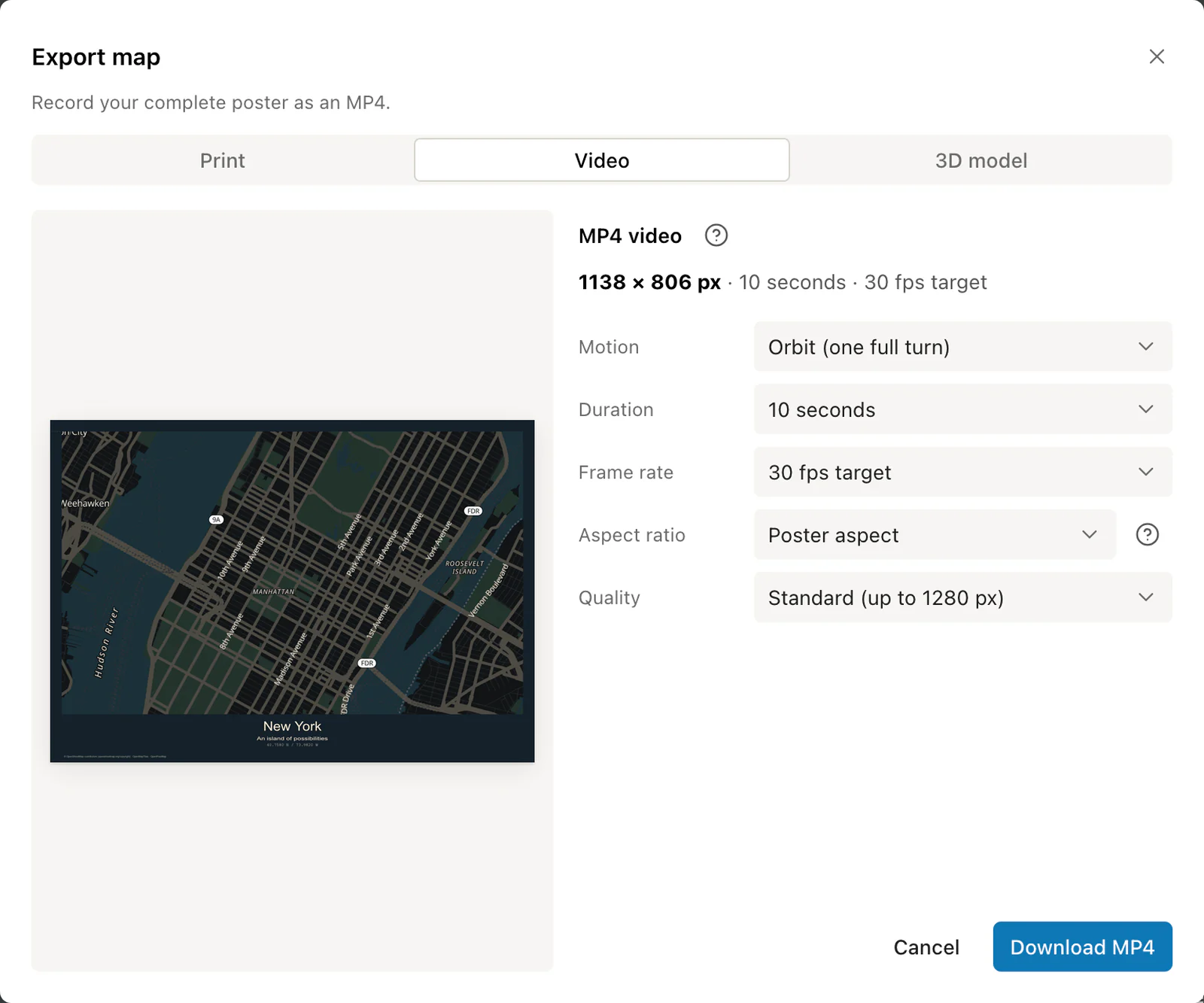
Video tab of the Export dialog set to a 10 second orbit of a New York poster

Your poster, with a slow camera move

The video export records the finished poster: the map, routes, places, title, photos, compass and the map credit. The poster frame and text stay still while the map turns inside it, so the clip looks like the print with a little life in it.

If the map is tilted and 3D terrain is on, the video keeps that view. Mountains turn in perspective, which is where an orbit looks its best.

An orbit clip recorded from a poster in the editor.

Orbit or sway

Both motions loop cleanly, so a clip can repeat on a feed or a screen without a visible jump.

MotionOrbitSway
Camera moveOne full 360° turnA gentle swing of 18° each way
Feels likeWalking around a modelA slow look left and right
NorthComes back to the top at the endStays near the top throughout
Best with3D terrain, a peak or a valleyCity maps, route posters, anything with lots of text

Sizes for each platform

Pick the aspect ratio for where the video will go. The whole poster always fits inside the frame. A portrait poster in a landscape video sits between white bands, which looks deliberate on YouTube or a slide.

Output size in pixels.
AspectStandardHighUse it for
9:16 portrait720 × 12801080 × 1920Reels, TikTok, YouTube Shorts and Stories
4:5 portrait856 × 10721286 × 1608Instagram and Facebook feed posts
1:1 square960 × 9601440 × 1440Square feed posts and LinkedIn
16:9 landscape1280 × 7201920 × 1080YouTube, slide decks and websites
Poster aspect806 × 11401210 × 1712The poster with no bands (A3 portrait shown)
  • For a full-bleed vertical clip, set the page itself to a 9:16 custom size, such as 180 × 320 mm, and choose Poster aspect when you record.
  • High quality records at 12 Mbps at 30 fps, so a 10 second clip is about 15 MB. Standard uses half that. Both double at 60 fps.

Record a clip

  1. Finish the poster first

    The video records what is on the page, so set the style, routes, text and decorations before you start. For depth, turn on 3D terrain and raise Pitch in the View section of the Map tab.

  2. Open the video export

    Choose Export, then Video. Pick Orbit or Sway, a length of 5, 10 or 15 seconds, and a target of 30 or 60 frames per second.

  3. Choose the aspect and quality

    Match the aspect to the platform from the table above. Standard goes up to 1280 px on the long side and High goes up to 1920 px.

  4. Record and keep the tab in view

    The editor plays the motion in real time and records it as it goes. A 10 second clip takes about 10 seconds, plus a few more to prepare and finish the file. Leave the editor tab visible while it records.

  5. Download the MP4

    The finished MP4 downloads straight from the browser. The recording happens on your device, so nothing is uploaded.

Ready to start?

Finish the poster, then record the orbit.

Make a map video

Common questions.

Length, sound, terrain and watermarks.

How long can the video be?

Choose 5, 10 or 15 seconds. Both motions loop cleanly, so you can repeat a clip in any video editor to make a longer one.

Will the video have a watermark?

No. The clip shows your poster and the map credit, the same as the printed version.

Can I add music?

The MP4 drops straight into CapCut, iMovie, Premiere or the Instagram and TikTok editors, where you can add music, captions and cuts.

Does it record the 3D terrain?

Yes. The video uses the same pitch and terrain as your map, so a tilted mountain view stays tilted for the whole clip.

What should I make first, the poster or the video?

The poster. The video records the finished page, so the same project gives you a print file and a clip to share it.