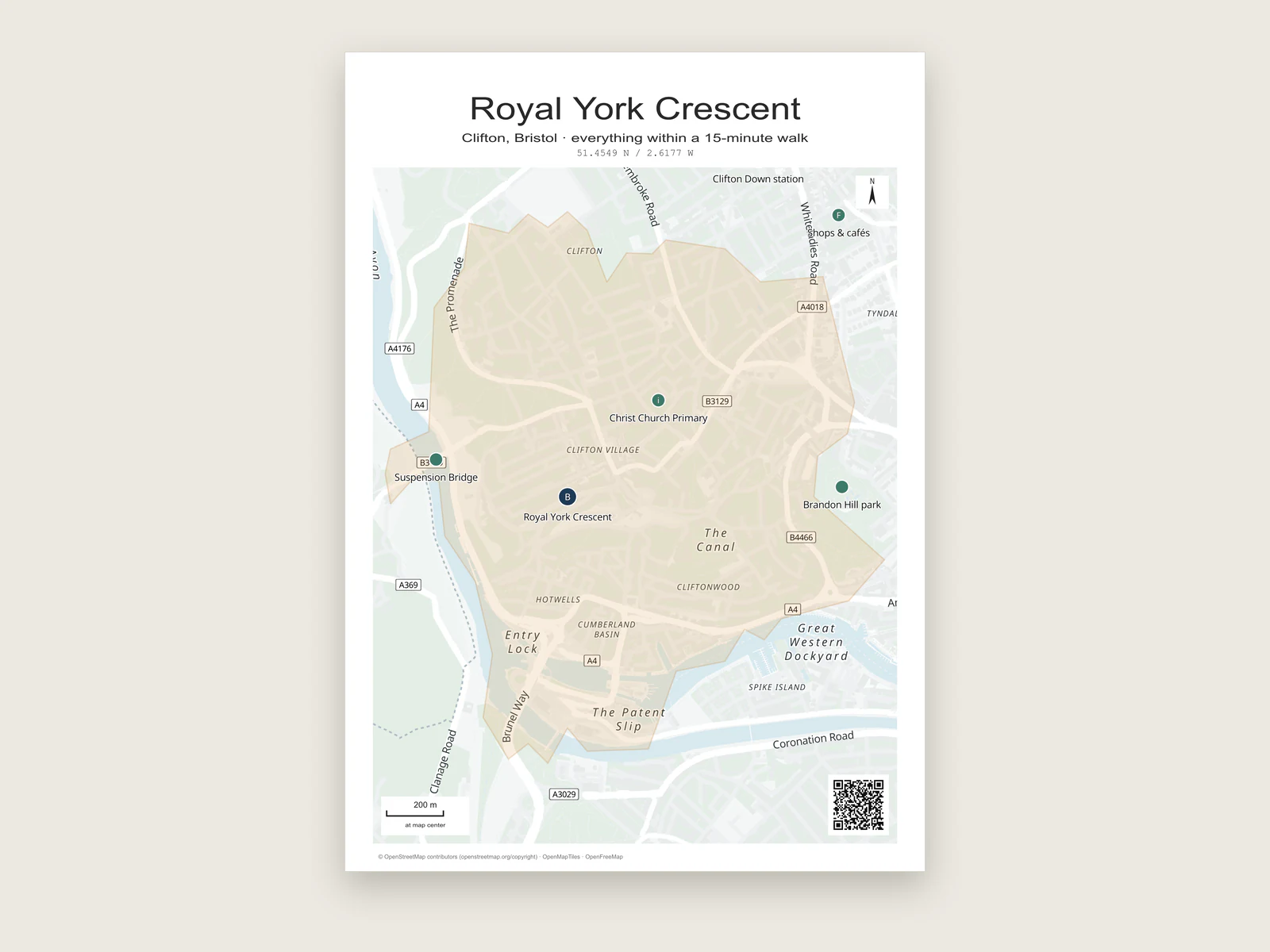
A location map for your listing, sized for the flyer.
Mark the property, paste the nearby places from a spreadsheet, add a walking-time area and a QR code for directions, then export at A4, US Letter or the exact size of your flyer's map box.
Buyers look at a location map to answer a few quick questions: where exactly is it, what is within walking distance, and how do I get there. A good real estate location map answers those at a glance and leaves everything else off.
That usually means the property in a strong colour, six to twelve nearby places in a quieter one, a walking-time area if the neighbourhood is walkable, and a QR code for directions. Street detail stays in the background.
Add nearby places from a list.Paste a list of addresses. Check each match, then add them to the map in one go.
Paste nearby places from a spreadsheet
Keep a sheet of schools, stations, parks and shops for each listing. Copying cells from Excel or Google Sheets gives tab-separated text, which is exactly what the place list expects.
1
Lay out the columns
For coordinates, use three columns in this order: Name, Longitude, Latitude. Google Maps shows latitude first when you copy a point, so swap the two numbers into the right columns before pasting.
2
Or use addresses
Switch the list to Addresses and use two columns: Name and Address. Each lookup handles 25 rows, and each address can be up to 160 characters.
3
Paste up to 300 rows
Open Place multiple from the Place tool and paste the cells. Coordinate lists take up to 300 rows at once, which covers a whole neighbourhood guide.
4
Check and add
For addresses, choose Look up addresses, review each match, and add the ones you want. Add the list before closing the panel so the places land on the map.
5
Style the group
Give nearby places a circle or square with a symbol such as Coffee, Food, Lodging, Parking or Information. Use a larger diamond in a brand colour for the property itself.
One listing, start to finish
A flat on Royal York Crescent in Clifton, Bristol, mapped on an A4 page for a printed flyer and the listing website.
Page
A4 portrait, 210 × 297 mm. At 300 DPI the PNG is 2480 × 3508 pixels.
Property
One place in dark navy with the Lodging symbol, labelled with the street name.
Nearby
Four places in a quieter green: the primary school, the shops on Whiteladies Road, the Suspension Bridge and Brandon Hill park.
Walking area
A 15 minute walking area from the property in a pale sand fill, so buyers can see what is close.
Text and map elements
The street as the title, "Clifton, Bristol · everything within a 15-minute walk" as the subtitle, the coordinates, a compass and a scale bar.
Directions and export
A location QR code in the bottom-right corner that opens the property in Google Maps. PDF goes to the printer and a PNG of the same page goes on the website.
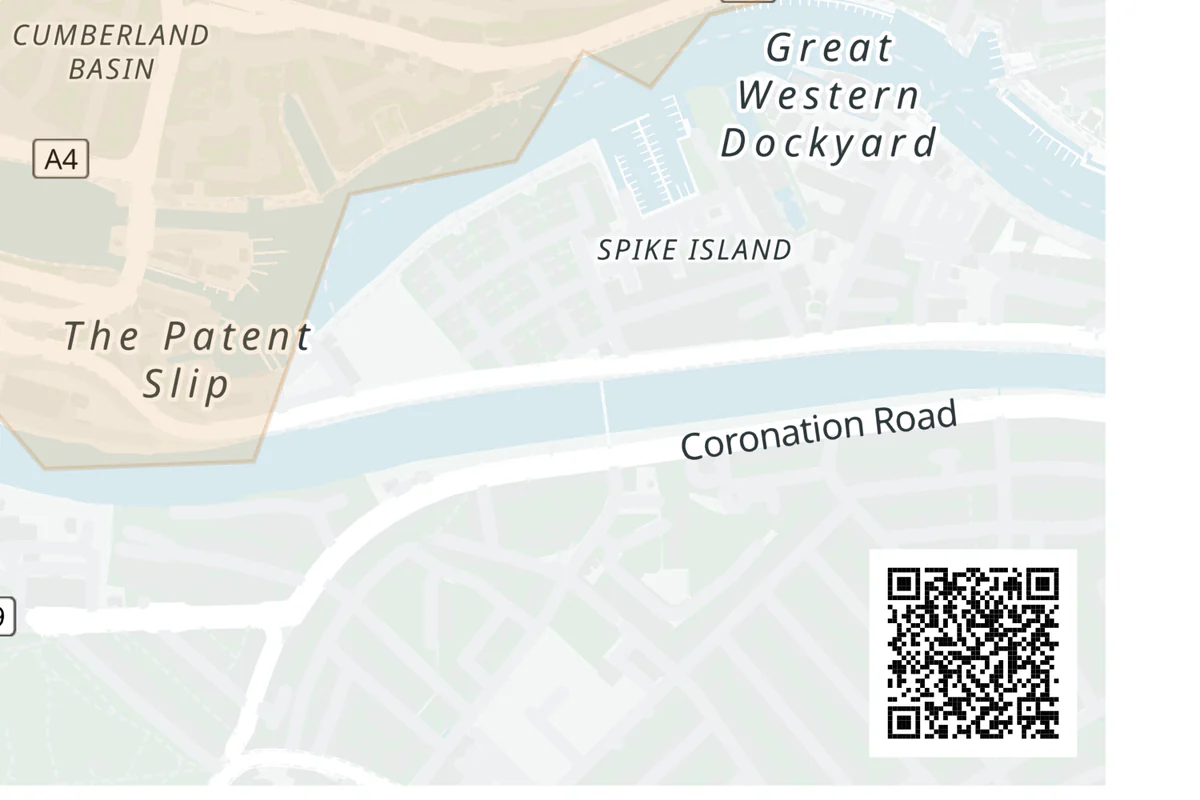
The QR code in the corner of the flyer.It opens the property in Google Maps, next to the scale bar and the map credit.
Flyer and handout sizes
A4, A5, A6 and US Letter are presets. Everything else is a custom page in millimetres, and the map print size guide covers the pixel maths. Size the page to the map box in your layout, not to the whole flyer, and the map drops in at exactly 100%.
Width × height. Swap the numbers for the other orientation.
Use
Page (mm)
PNG at 300 DPI (px)
US Letter flyer, 8.5 × 11 in
215.9 × 279.4
2550 × 3300
A4 flyer
210 × 297
2480 × 3508
A5 leaflet
148 × 210
1748 × 2480
Half Letter handout, 5.5 × 8.5 in
139.7 × 215.9
1650 × 2550
Postcard, 4 × 6 in
101.6 × 152.4
1200 × 1800
Map box on a flyer
180 × 110
2126 × 1299
When the map runs to the trimmed edge of the sheet, add 3 mm on every side for bleed, for example 216 × 303 mm for A4, and let the printer trim it back.
Numbered places with photos
For a neighbourhood guide, attach a photo to each nearby place from the Photos section of the Layout tab. Each one gets a numbered badge on the map, and a strip along the top or bottom of the page shows the photos in the same order with their captions.
A map can hold up to 24 photo stops. Use PNG or JPEG files up to 1 MiB and 2048 pixels per side. Photos are centre-cropped to fit, so a landscape shot of a park and a portrait shot of a café line up neatly.
Yes. Upload a PNG, JPEG or SVG as a custom marker. Raster images can be 100 to 2048 pixels per side and up to 1 MiB. Custom markers export in PNG, layered SVG and layered PSD.
Can I match our brand colours?
Yes. Set any colour for markers, areas and text, and adjust the base map palette until the streets and water sit comfortably with your brand.
How do I reuse the setup for the next listing?
Download the project file once the first map looks right. For the next listing, open that file, move the property marker, paste the new nearby places and export.
Can I use the map in commercial listings?
Yes. The editor is free with no account, and the exported files are yours to use. Keep the printed map credit on the page.
Which format should I send to the printer?
PDF, at the exact page size you set. It keeps places, areas and text sharp. Use the PNG for the website and email.