Print Map Studio
Travel maps with photos

A travel map with your photos pinned where you took them.

Mark the stops of a trip, attach a photo to each one, and print the map with numbered pictures on the places and a matching strip of photos along the edge. Your photos stay on your device the whole time.

  • Up to 24 photo stops
  • Numbered strip with captions
  • Road, arc or straight routes
  • Photos stay on your device
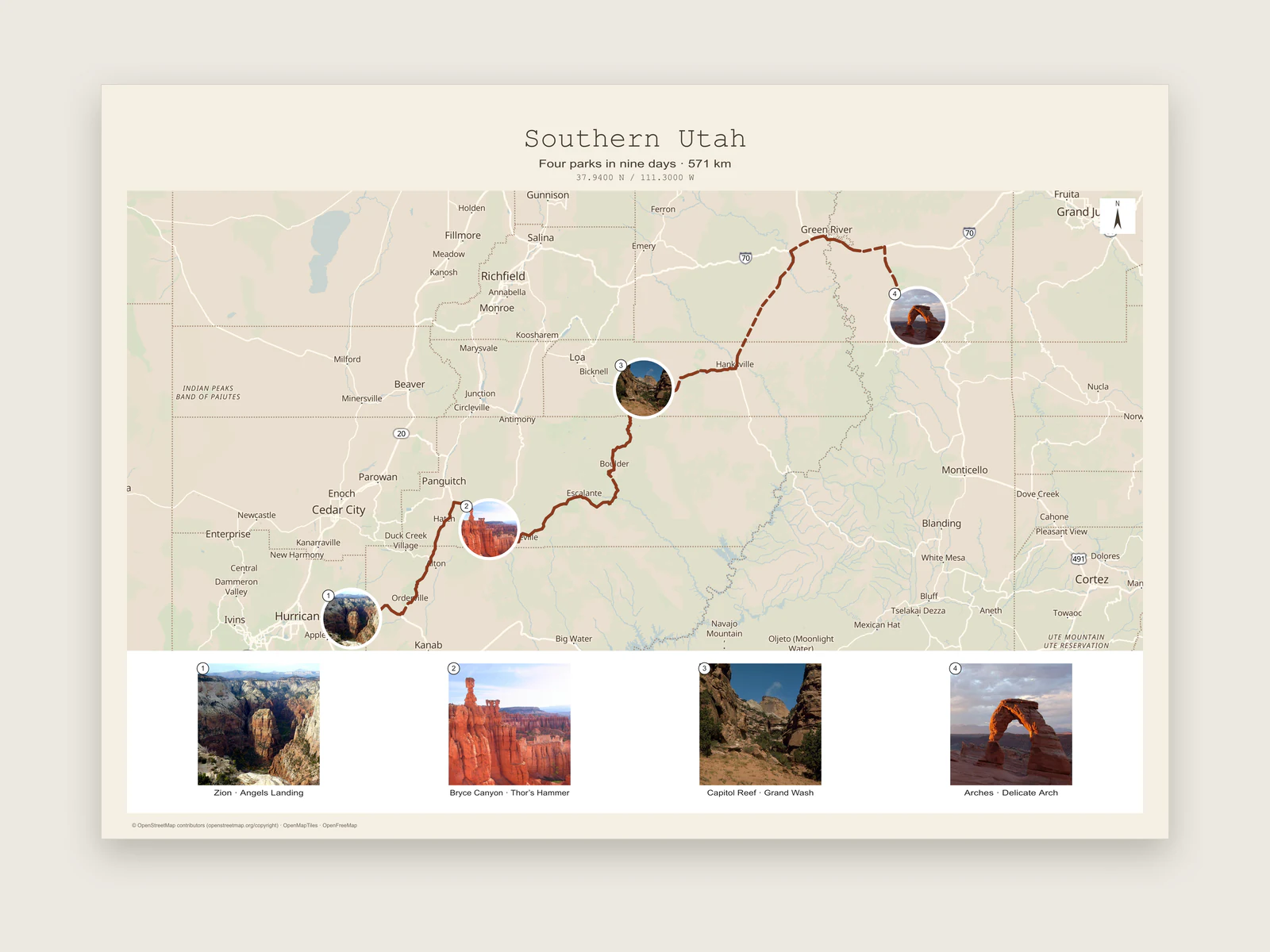
Southern Utah road trip poster with photos pinned to four parks and a numbered photo strip

Pin each photo to the place you took it

Every photo belongs to a place marker on the map. The place holds the location and the photo holds the picture, so you can move a stop and its photo follows.

  1. Add the stops

    Click the map with the Place tool (P) for each stop, or paste a list into the place spreadsheet as Name, Longitude, Latitude, with up to 300 rows at once. Give each place a short label.

  2. Attach a photo

    Open Layout › Photos, choose the place under Attach to and click Add local photo. Leave it on New pin at center to drop a fresh place in the middle of the map, then drag it into position with the Select tool.

  3. Write the captions

    Each stop gets a caption of up to 200 characters. Three or four words read best under a small photo: "Glencoe, day 3" says enough.

  4. Choose where photos appear

    Turn on Photos on the map for round or square pictures sitting on their places, the Numbered photo strip for a row of squares above or below the map, or both. The first photo you add switches on Photos on the map for you.

  5. Draw the way between

    Use the Route tool to join the stops. Road follows real roads by car, on foot or by bike, Arc draws a curve for flights and ferries, and Straight joins the points directly. If you recorded the trip, import the GPX file instead.

The Photos panel

All photo settings live in Layout › Photos. The photo on the map and the tile in the strip share one number, so readers can match the two at a glance.

  • Attach to

    Pick an existing place from the list, or New pin at center to create one. Removing a photo keeps its place, and deleting a place removes its photo.

  • The photo list

    Stops are numbered in the order you add them, so add photos in trip order and stop 1 is the first morning. Each one has its own caption field.

  • Photos on the map

    Circle or square, 5 to 100 mm across, with a border colour of your choice and the stop number in the corner. Pictures are centre-cropped, so keep faces and horizons near the middle of the frame.

  • Numbered photo strip

    Square tiles in a row above or below the map, 12 to 100 mm tall, with captions underneath. With the strip on, captions move off the map and into the strip.

How big each photo prints in the strip

The strip divides the width of the map between your photos, with a 3 mm gap between each tile, and every tile is square. The more photos you add, the smaller each one gets, so it helps to know the numbers before you choose a page size.

Tile size is also capped by the strip height. With captions on, a tile can be 12 mm shorter than the strip, so set the strip height to the tile width plus 12 mm to use the full width.

Assumes 10 mm page margins. A4 landscape gives the strip the same 277 mm width as A3 portrait.
Photos in the stripA4 portrait tileStrip height for A4A3 portrait tileStrip height for A3
443 mm56 mm65 mm78 mm
628 mm40 mm42 mm55 mm
820 mm33 mm31 mm43 mm
1212 mm25 mm19 mm32 mm
168 mm21 mm14 mm26 mm
244.8 mm17 mm8 mm20 mm
  • For more than about ten photos, move up a page size or turn the page to landscape for a wider strip.

Photo sizes the editor accepts

Photos are embedded in the project, so the project file carries them wherever it goes. They stay on your device and inside that file.

Formats
PNG and JPEG.
Each photo
Up to 1 MiB and up to 2048 pixels on each side.
Per project
Up to 24 photo stops, about 4.5 MB of image files and 16.7 million pixels across all photos together.
Captions
Up to 200 characters per stop.

Pick a layout that leaves room for pictures

The Field notes layout was made for this kind of map: warm parchment paper, a monospace title above the map and the Paper style underneath. The Copenhagen starter in New from template uses it with the subtitle "A weekend by the water", which is a quick way to see the look before adding your own trip.

Put the strip on the opposite side to the title. With the title above the map, the strip reads well along the bottom, and the map keeps a clear block of space in the middle.

Hiding a place on the map hides its photo too, which is handy for trying a shorter version of the trip before you print.

  • Field notes layout
  • Map photos and strip
  • Route between stops
  • Hide a stop to try a shorter trip
Photos settings with four trip photos, captions and the photo strip switched on
Layout › PhotosAttach photos to places, write captions, then style the map photos and the strip.

Ready to start?

Put your trip on the map, one photo per stop.

Start a photo map

Common questions.

Photo limits, numbering, privacy and routes.

How many photos can I add to one map?

Up to 24 photo stops per project. Each photo can be a PNG or JPEG of up to 1 MiB and 2048 pixels per side.

Are my photos uploaded anywhere?

Photos stay on your device. They are stored in the browser autosave and inside the project file you download, and exports are made in your browser.

Can I change the numbering order?

Stops are numbered in the order you add them. To move a photo to the end of the sequence, remove it and add it again. Adding photos in trip order from the start saves the reshuffle.

Can I show photos without the strip?

Yes. Turn on Photos on the map and leave the strip off. Captions then appear in a small label under each photo on the map.

Which export formats include the photos?

PNG, PDF, layered SVG and layered PSD all include the photos, the numbered badges and the strip, at the page size you set.

Can I add the route I drove?

Yes. Draw it with the Route tool using Road, Arc or Straight segments, or import a GPX, KML or GeoJSON track from your phone, car or bike computer. For a poster built around the route itself, see route map posters.